
 Ship With FR8Star
 Get Financing
How To Bid On Live Auctions
Register
Before you can bid in an auction that's livestreamed through Equipmentfacts, you will need to either log in or register for an account.
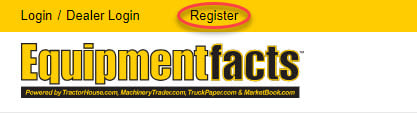
1. Click the Register link at the top of the webpage (desktop) or tap the Menu button in the upper left corner(mobile) and then tap Register.
2. You only need to provide your email address, name, physical address, and phone number, and create a password to get started.
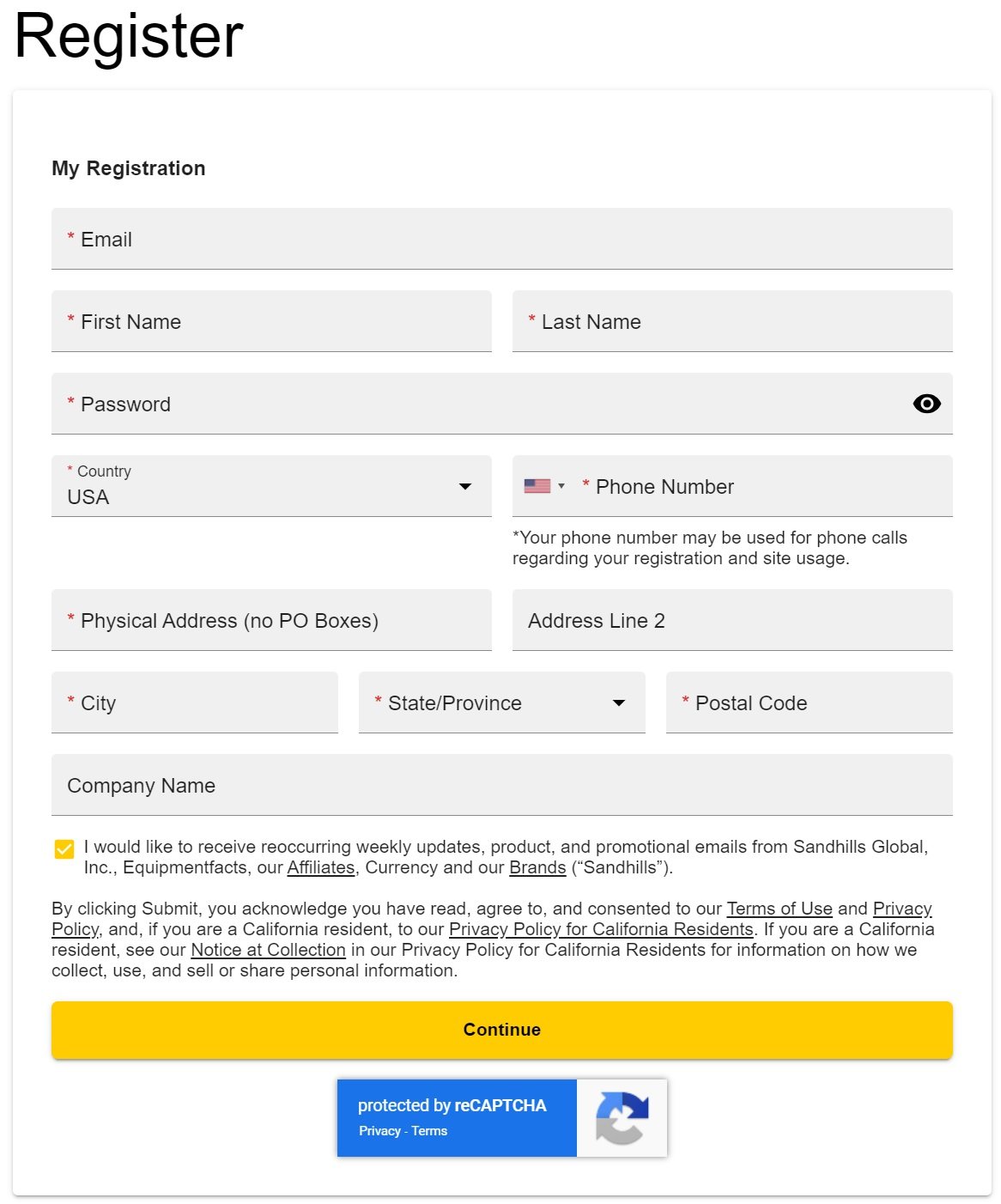
3. After you select Submit, you will receive a phone number verification, an email acknowledgment, and further instructions if necessary.
Watch this video walk-through for more information about how to register to use Equipmentfacts:
1. Click the Register link at the top of the webpage (desktop) or tap the Menu button in the upper left corner(mobile) and then tap Register.
2. You only need to provide your email address, name, physical address, and phone number, and create a password to get started.
3. After you select Submit, you will receive a phone number verification, an email acknowledgment, and further instructions if necessary.
Watch this video walk-through for more information about how to register to use Equipmentfacts:
Register
Sandhills Global Logins. Equipmentfacts' live auction simulcasting and bidding platform is a service of Sandhills Global, so users with an account on Sandhills marketplaces (such as AuctionTime.com, MachineryTrader.com, TractorHouse.com, or TruckPaper.com) can use their single-sign on username and password to log in and bid.
Approvals. Your account must be registered and approved by Equipmentfacts prior to bidding. If you need assistance, call 908-788-2025 during office hours (8 a.m. to 5 p.m. CT), Monday through Friday.
Log In
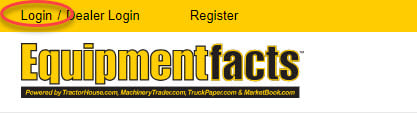
Click the Log In link at the top of the webpage (desktop) or tap the Menu button (mobile) and then tap Log In.
Watch this video walk-through for more information about how to log in:
Watch this video walk-through for more information about how to log in:
Bidding
There are a few different ways to place a bid on items up for auction, including a pre-bid before the auction and submitting a live bid using Equipmentfacts’ Bidder Board.
Pre-Bid
You can pre-bid on specific assets before the auction starts. When you place a pre-bid, the asset is automatically added to your Watch List on Equipmentfacts.com.
To pre-bid after you found an asset of interest:
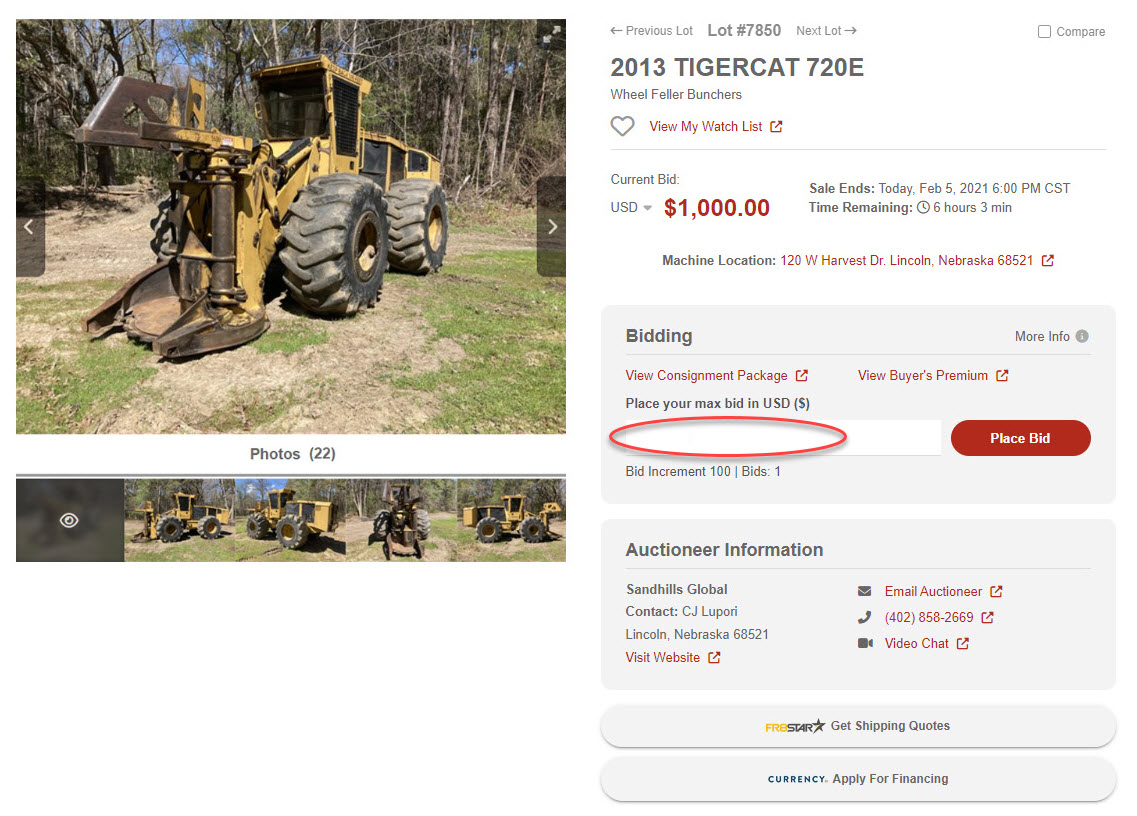
1. Under Bidding, enter your maximum bid and click the Place Bid button.

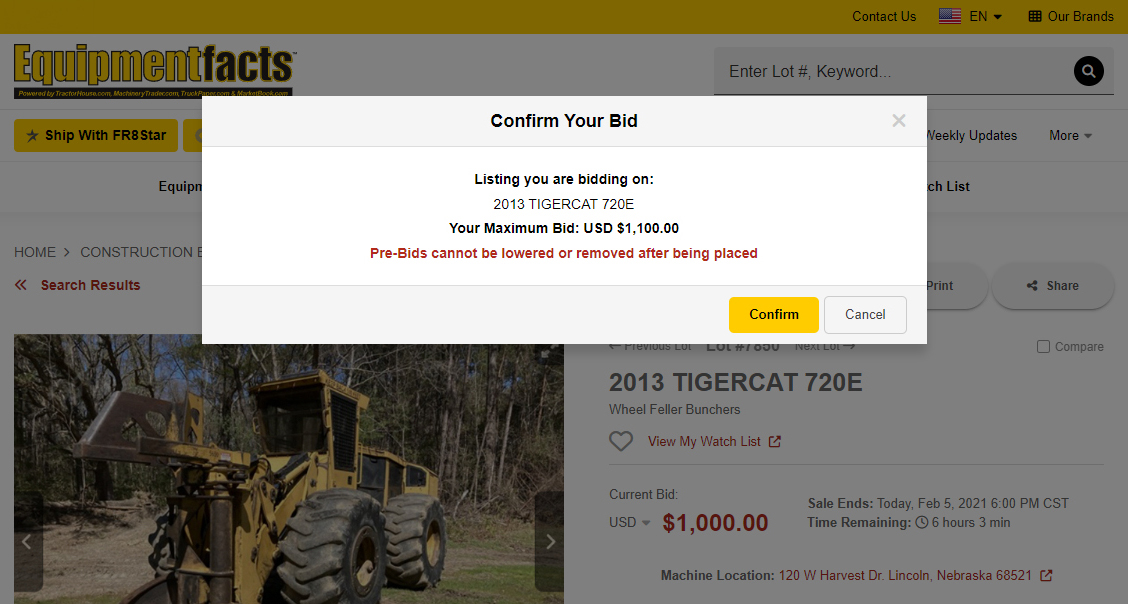
2. Review your bid and click the Confirm button to submit it.
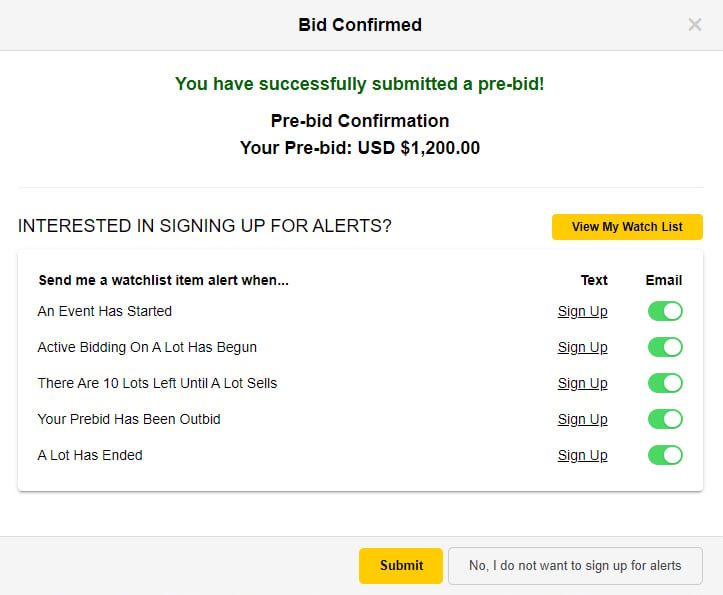
3. Sign up for alerts to stay up to date on auctions.
3. Equipmentfacts will bid in increments up to your maximum bid and will stop bidding at your maximum bid.
View Your Pre-Bid. During the live portion of an Equipmentfacts auction, your pre-bid is displayed in green on the listing’s View Details page. It is possible to delete your pre-bid during the live auction.
Maximum Bids. Maximum bids placed before the live sale allow Equipmentfacts to bid for you, even if you’re not able to attend the live simulcast. Equipmentfacts will bid using the smallest increment necessary to push you to the highest bidder, until your maximum bid is reached. Equipmentfacts will attempt to alert you when you’ve been outbid. Visit the My Account section on Equipmentfacts.com to manage your email and text message alert settings, if you want to be notified about items you are bidding on.
To pre-bid after you found an asset of interest:
1. Under Bidding, enter your maximum bid and click the Place Bid button.
2. Review your bid and click the Confirm button to submit it.
3. Sign up for alerts to stay up to date on auctions.
3. Equipmentfacts will bid in increments up to your maximum bid and will stop bidding at your maximum bid.
View Your Pre-Bid. During the live portion of an Equipmentfacts auction, your pre-bid is displayed in green on the listing’s View Details page. It is possible to delete your pre-bid during the live auction.
Maximum Bids. Maximum bids placed before the live sale allow Equipmentfacts to bid for you, even if you’re not able to attend the live simulcast. Equipmentfacts will bid using the smallest increment necessary to push you to the highest bidder, until your maximum bid is reached. Equipmentfacts will attempt to alert you when you’ve been outbid. Visit the My Account section on Equipmentfacts.com to manage your email and text message alert settings, if you want to be notified about items you are bidding on.
Pre-Bid
View A Sale Catalog & Bid
On auction day, Equipmentfacts opens the local auction to bidders from anywhere worldwide, bringing the live feed right to your computer or smartphone via Equipmentfacts.com. The livestream typically includes both video and sound, and bidders can instantly place bids, giving you an opportunity to experience the auction as if you were attending it in person.
To bid at an upcoming auction:
1. Visit Equipmentfacts.com and find an auction of interest. Select the Sale Catalog button to view the complete sale catalog to determine whether you are interested in bidding on any assets.

2. Click the icon next to Sales Catalog to review the auctioneer’s Terms And Conditions.

3. To bid on a live auction, click the Enter Auction button to start bidding.

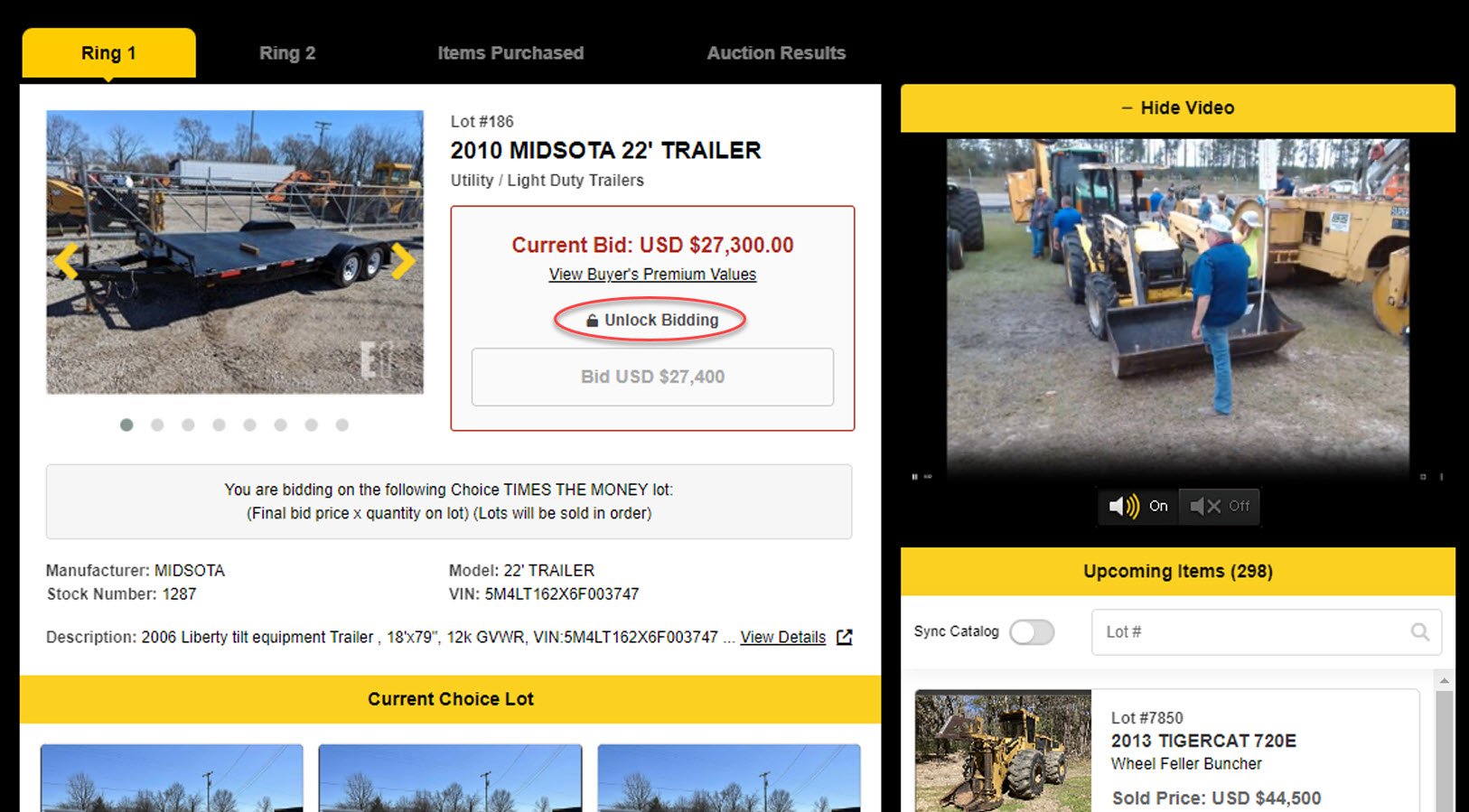
4. The Equipmentfacts Bidder Board for that auction will appear and the most current live asset will be displayed. Click Unlock Bidding to start bidding eligibility.
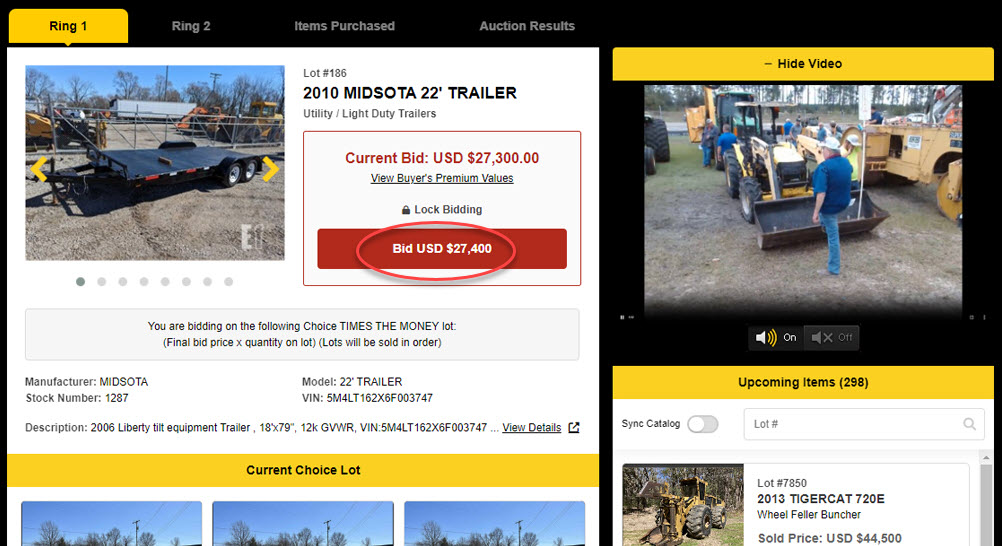
5. Click the Bid button, which includes a bid amount, to increase the bid
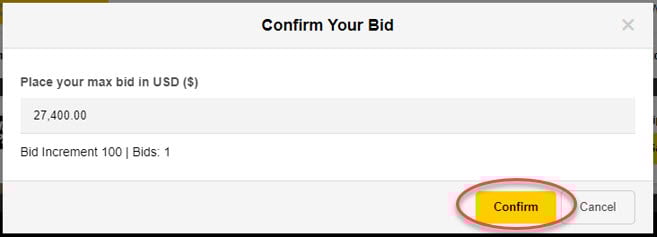
6. Review your bid and click the Confirm button.
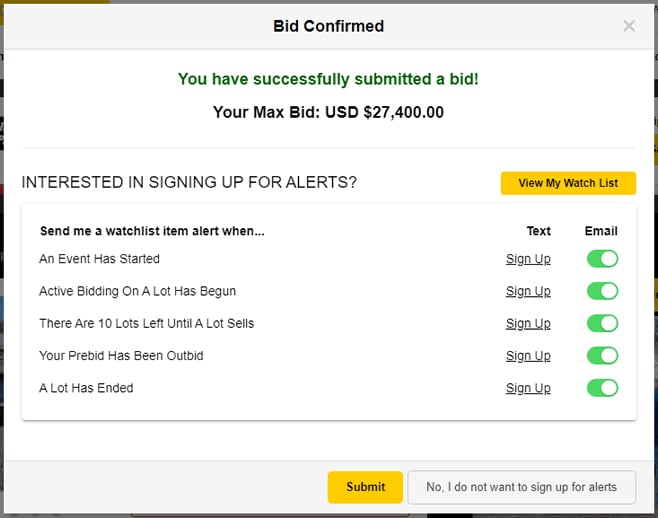
7. Your bid is submitted. You can optionally sign up for alerts to monitor the status of assets.
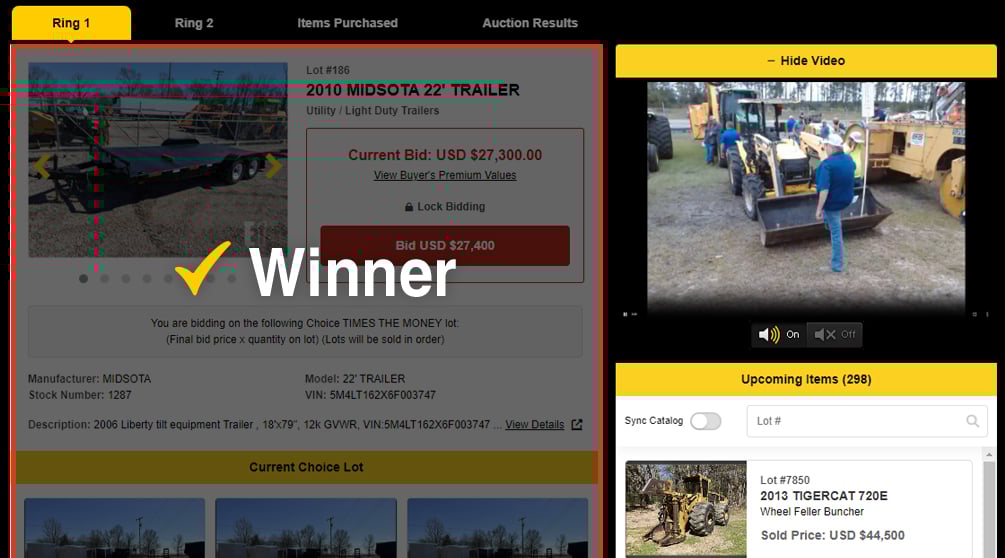
8. The auction will continue until final call. If you are the highest bidder at the end of bidding, a yellow checkmark and “Highest Bidder” notification will appear.
High Bids. At the top of the Bidder Board, Equipmentfacts displays your high bid history at the auction and auction results for all lots up for auction.
Watch our short video to see how to view a sales catalog and start bidding:
To bid at an upcoming auction:
1. Visit Equipmentfacts.com and find an auction of interest. Select the Sale Catalog button to view the complete sale catalog to determine whether you are interested in bidding on any assets.
2. Click the icon next to Sales Catalog to review the auctioneer’s Terms And Conditions.
3. To bid on a live auction, click the Enter Auction button to start bidding.
4. The Equipmentfacts Bidder Board for that auction will appear and the most current live asset will be displayed. Click Unlock Bidding to start bidding eligibility.
5. Click the Bid button, which includes a bid amount, to increase the bid
6. Review your bid and click the Confirm button.
7. Your bid is submitted. You can optionally sign up for alerts to monitor the status of assets.
8. The auction will continue until final call. If you are the highest bidder at the end of bidding, a yellow checkmark and “Highest Bidder” notification will appear.
High Bids. At the top of the Bidder Board, Equipmentfacts displays your high bid history at the auction and auction results for all lots up for auction.
Watch our short video to see how to view a sales catalog and start bidding:

View A Sale Catalog & Bid
Bid From A Listing
Assets up for bidding often appear as listings on Sandhills Global marketplaces such as MachineryTrader.com, TractorHouse.com, and TruckPaper.com, in addition to Equipmentfacts.com.
To bid on a listing on a Sandhills marketplace:
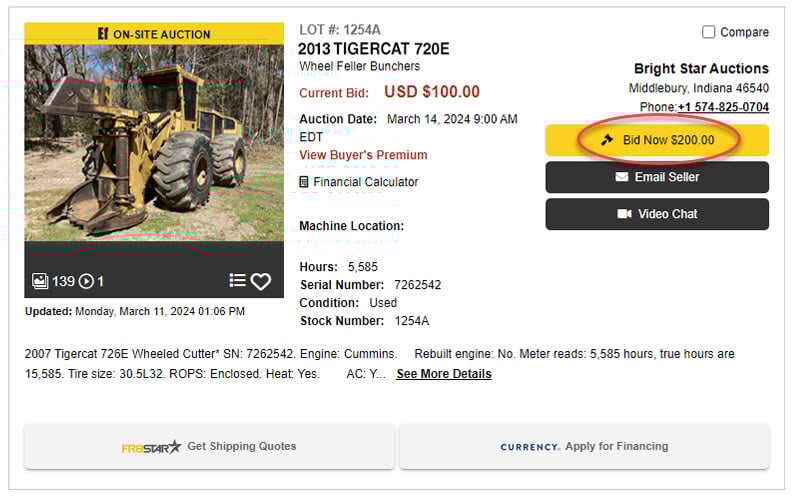
1.Click the Bid Now button on the listing, which will direct you to the equipment listing on Equipmentfacts.com.
2. Click the Enter Live Auction button to load the Equipmentfacts Bidder Board.

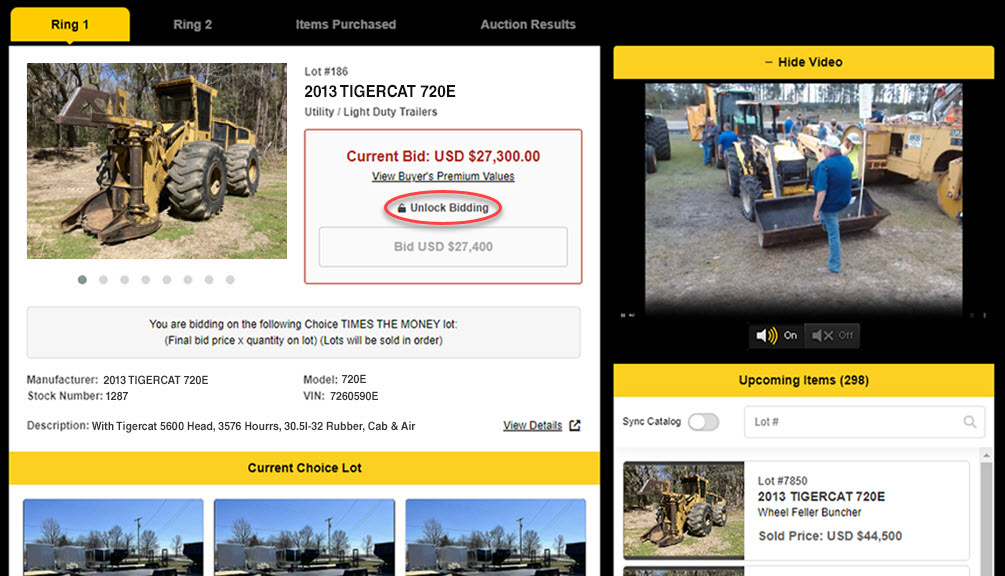
3. The Equipmentfacts Bidder Board for that auction will appear and the most current live asset will be displayed. Click Unlock Bidding to start bidding eligibility.
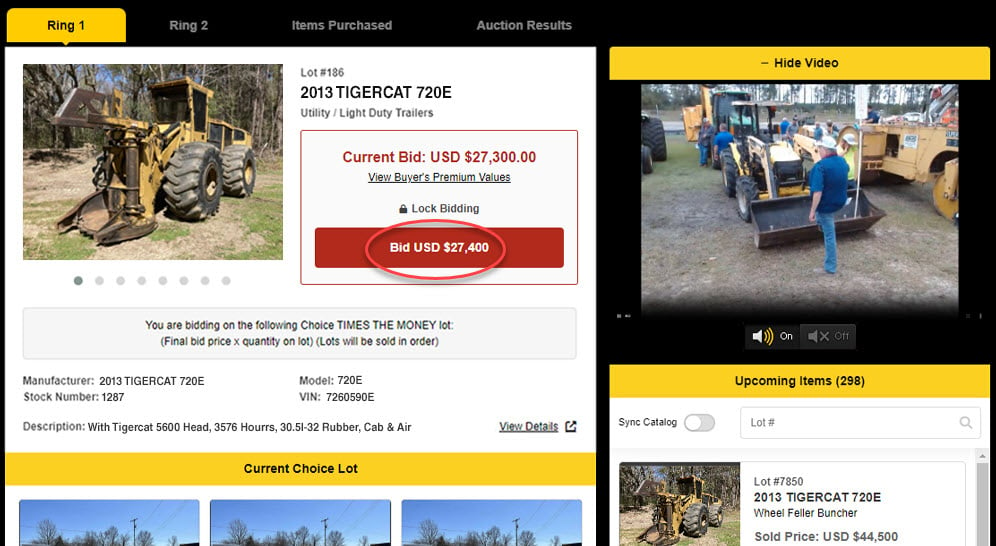
4. Click the Bid button, which includes a bid amount, to increase the bid.
5. Review your bid and click the Confirm button.
6. Your bid is submitted. You can optionally sign up for alerts to monitor the status of assets.
7. The auction will continue until final call. If you are the highest bidder at the end of bidding, a yellow checkmark and “Winner” notification will appear.
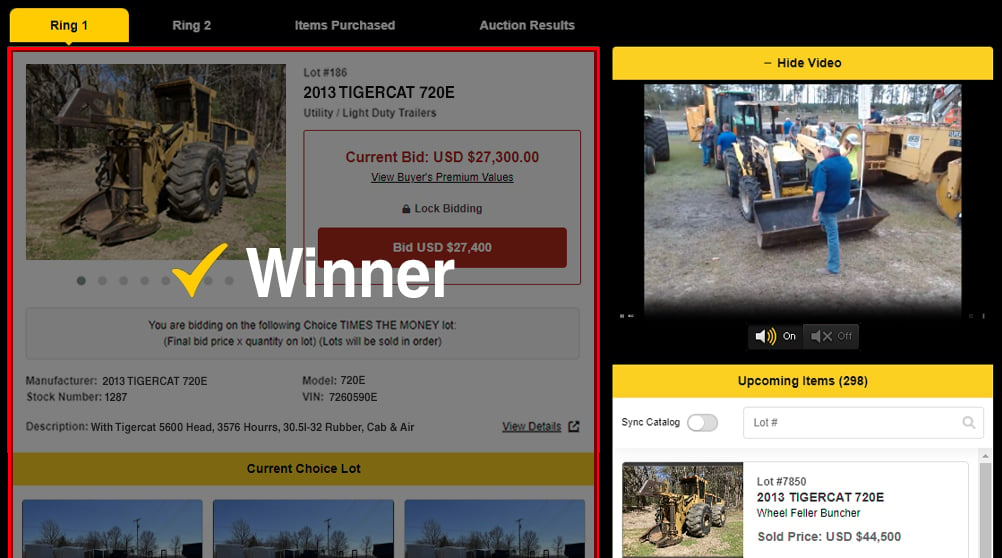
High Bids. At the top of the Bidder Board, Equipmentfacts displays your high bid history at the auction and auction results for all lots up for auction.
Watch our short video to see how to bid from a listing page:
To bid on a listing on a Sandhills marketplace:
1.Click the Bid Now button on the listing, which will direct you to the equipment listing on Equipmentfacts.com.
2. Click the Enter Live Auction button to load the Equipmentfacts Bidder Board.
3. The Equipmentfacts Bidder Board for that auction will appear and the most current live asset will be displayed. Click Unlock Bidding to start bidding eligibility.
4. Click the Bid button, which includes a bid amount, to increase the bid.
5. Review your bid and click the Confirm button.
6. Your bid is submitted. You can optionally sign up for alerts to monitor the status of assets.
7. The auction will continue until final call. If you are the highest bidder at the end of bidding, a yellow checkmark and “Winner” notification will appear.
High Bids. At the top of the Bidder Board, Equipmentfacts displays your high bid history at the auction and auction results for all lots up for auction.
Watch our short video to see how to bid from a listing page:

Bid From A Listing